

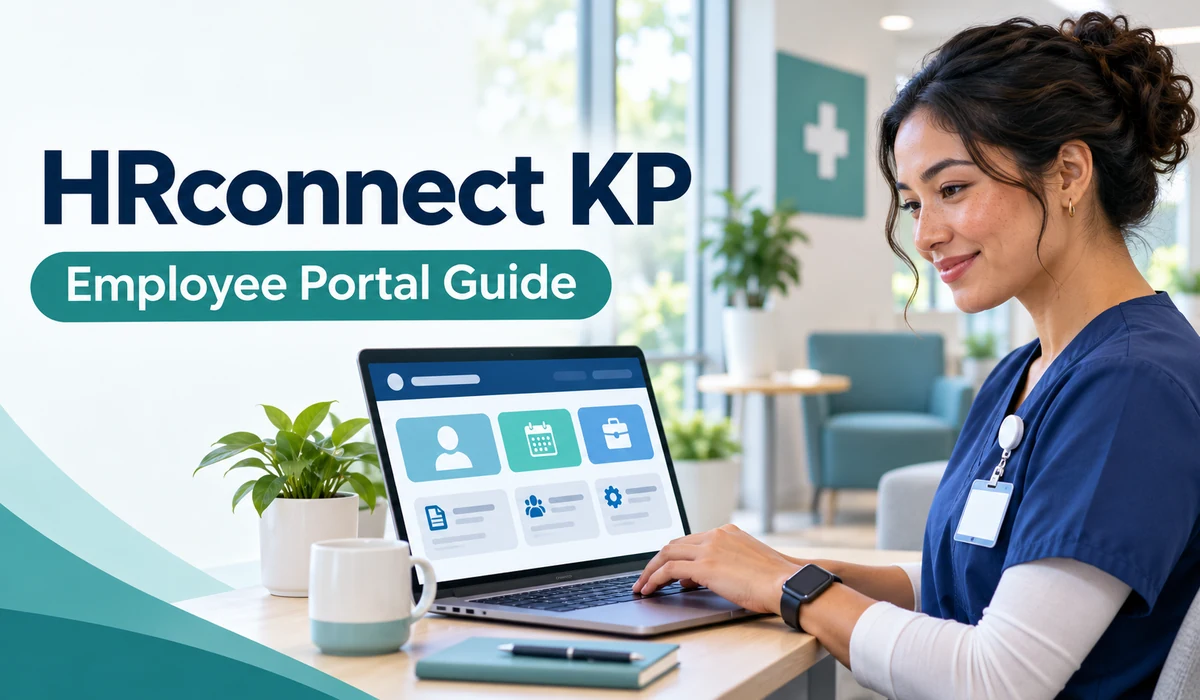
HRconnect KP is Kaiser Permanente’s employee portal for work-related information and services. Employees may use it to find tools for pay, benefits, time off, leave, and career development. The exact options can depend on where someone works, their job, and their access level.
The portal can be useful for routine tasks, but it may take some time to learn where each feature is located. This guide explains what HRconnect KP is, what employees may find there, how access works, and what to do when the portal does not behave as expected.
What Is HRconnect KP?
HRconnect KP is Kaiser Permanente’s online human resources portal. It brings together employee services that might otherwise require separate websites, forms, or contacts. The portal’s public-facing pages show categories such as Money & Time, Benefits & Wellness, and Career & Development.
Some pages may be visible before sign-in, while personal employment information requires authorized access. For example, general information about employee services is different from an individual’s pay statement or benefit record.
The name can appear as HRconnect, HRconnect KP, or My HR in different materials. Employees should use the portal and instructions provided through Kaiser Permanente’s official workplace channels because page names and sign-in steps can change.
Who Uses the HRconnect KP Portal?
The portal is intended for Kaiser Permanente employees and other authorized users. It is not a general patient portal, and it is not designed for members to manage medical appointments, prescriptions, or health plan details.
Access can vary by employment status, work location, department, and role. A current employee may see tools that a new hire, former employee, contractor, or manager does not. Some services may also require additional approval or a separate work system.
If someone has just accepted a job, they may receive onboarding instructions before full employee access is available. If access is missing, the best first step is to follow the instructions from the hiring or HR team rather than trying a third-party site.
What Can Employees Do on HRconnect KP?
HRconnect KP groups common work resources in one place. The public HRconnect page lists options that include pay, time off, leave, benefit enrollment, benefit summaries, employee discounts, career searches, and student financial aid. Not every item will be available to every employee.
Depending on the employee’s access, the portal may help with tasks such as checking pay information, reviewing benefit choices, submitting documents, or finding work-related resources. Some actions may take place in another system reached through the portal.
Common categories include:
- Money and time tools, such as pay, W-2 information, leave, and absences
- Benefits and wellness resources, including enrollment and coverage summaries
- Career and development information, such as job searches and education support
The portal is best understood as a starting point for employee services. It may direct users to a task-specific page, so employees should read on-screen instructions before submitting changes or requests.
How to Access HRconnect KP
Employees should begin from an official Kaiser Permanente workplace page or an approved bookmark supplied by their organization. Use a current browser and follow the sign-in steps shown for your employee group. The exact process may differ by region or role.
Some employees may need a work ID, password, or another sign-in check. If the system asks for a verification step, complete it only on a page reached through an official Kaiser Permanente channel. Do not enter work credentials on a site that merely uses a similar name.
For a first-time user, onboarding materials or a manager may explain when access becomes active. If a new employee cannot sign in before their start date, they should check their welcome instructions or contact the appropriate internal support team.
Choosing a Work Location or Region
HRconnect may ask users to select a work location or employee group to personalize the portal. Choices can include regions and particular groups. This selection helps display information relevant to a user’s workplace.
The location page may appear again after changing browsers, clearing cookies, using a different device, or updating browser settings. Seeing the selection screen again does not necessarily mean the employee account is broken; it may simply need the location choice again.
Choose the location where you work and the group that best matches your role. If the options do not fit, or the portal keeps returning to the same screen, use the support instructions shown on the official page or ask your local HR contact.
Pay, Tax Forms, and Direct Deposit
The Money & Time area may provide access to pay-related resources. Depending on eligibility and system setup, employees may be able to review pay information, find W-2 forms, or manage related tasks. The available options can differ across groups.
Employees should review pay statements carefully and use the official portal to locate tax documents. If a pay amount, deduction, or tax detail looks incorrect, record the relevant pay period and contact the payroll or HR support channel listed for your region.
Direct deposit or banking changes are sensitive. Use only the authorized portal and follow its verification process. Avoid making account changes over an unfamiliar link or in response to an unexpected message. If the portal directs you to another tool, confirm that the page is part of the official workplace process.
Benefits and Wellness Resources
The Benefits & Wellness section can help employees find benefit enrollment, coverage summaries, document submission, and wellness resources. These tools can be especially useful during a new-hire enrollment period, annual enrollment, or a qualifying life event.
The portal may show information about available coverage, but employees should read the plan documents and deadlines that apply to their own region and status. A portal summary is useful for navigation; it may not answer every question about eligibility, costs, or coverage rules.
Employees who need clarification can contact the benefits team listed in their official materials. Before making an election, check the effective date and confirm that dependents and other details are correct. Keep a record of any confirmation shown after submitting a change.
Time Off, Absences, and Leave
HRconnect may provide tools for viewing time off, requesting an absence, or finding leave information. The choices and steps depend on the employee’s role, work group, and applicable workplace rules.
A request entered in the portal may still need review or approval. Employees should check the status after submitting it and follow their department’s process for urgent or planned absences. They should also make sure they select the correct absence type and dates.
Leave of absence can involve forms, deadlines, and coordination with more than one team. The portal may help users locate required documents or submit information, but employees should follow the specific instructions for their case. For personal leave questions, use the authorized HR or leave support channel.
Career and Education Resources
The portal’s Career & Development area may include job search resources and education support information. Some employees may find internal opportunities, training resources, or details about tuition assistance through HRconnect or a linked system.
Access to a career tool does not guarantee eligibility for every position or program. Job requirements, application steps, deadlines, and funding rules can vary. Employees should review the details on the official page for the role or program they are considering.
For education support, employees can look for the current program requirements and contact information. Reimbursement programs may have rules about eligible courses, approval timing, work status, or required documentation. Confirm those details before paying for a course or assuming that an expense will be covered.
Why HRconnect KP May Look Different for Each Employee
The portal may not look identical for everyone. Regional choices, job roles, employment status, and system permissions can affect which links and services appear. A coworker may have a different menu because they work in another region or have a different role.
Some tasks may also move to separate systems while remaining accessible through HRconnect. A link may open another sign-in page or a specialized tool. This can be part of the normal process, but users should still make sure they reached it through a trusted workplace route.
If a feature described in an older guide is missing, the guide may no longer match the current portal. Use current instructions from your HR team or the portal itself, and avoid relying on unofficial screenshots or outdated walkthroughs for sensitive actions.
Common HRconnect KP Problems and Fixes
A sign-in failure can result from a mistyped user ID, an expired password, a temporary system issue, or an account that is not yet active. Check the sign-in instructions and make sure you are using the correct employee account.
If the portal repeatedly asks for a location, try selecting the correct region again. Browser changes, cleared cookies, or an old bookmark may cause the location page to return. Starting from the official HRconnect homepage can help avoid stale links.
If a page does not load, try a current browser or another approved device, then check whether the issue affects only one task. Do not keep retrying sensitive changes if the system displays an error. Note the time and message, then contact the internal support team.
Account Safety and Privacy
HRconnect may contain private employment and financial information. Employees should protect their sign-in details, lock shared devices, and sign out when finished, especially when using a public or shared computer.
Be cautious with messages that request a password, verification code, banking details, or urgent account changes. Open the portal through a trusted bookmark or official workplace page instead of clicking an unexpected sign-in link. Do not share a one-time code with another person.
If you suspect someone accessed your account, follow Kaiser Permanente’s official security instructions and contact the support team promptly. Avoid posting screenshots of pay, benefits, or employee records in public forums, even if names or ID numbers seem partly hidden.
Where to Get HRconnect KP Help
For login or technical problems, use the service desk or support contact provided in official Kaiser Permanente employee materials. The right team may depend on the error, the employee’s location, and whether the issue concerns sign-in, pay, benefits, or time off.
For a benefits or leave question, contact the department responsible for that service instead of relying only on general technical support. A service desk may restore access but may not be able to explain a plan choice or approve an absence.
When asking for help, describe what you were trying to do and include the exact error message. Do not send your password, full banking details, or verification code. If an issue affects a deadline, mention the deadline when contacting the appropriate team.
Final Thoughts
HRconnect KP brings together many employee resources, including tools for pay, benefits, time off, leave, and career development. The pages and steps an employee sees can depend on their role, region, and access permissions.
For a smoother experience, start from an official Kaiser Permanente workplace page, check the current instructions, and use the support team responsible for your issue. Handle sign-in details and personal records with care, and confirm important changes after submitting them.
(FAQs)
Is HRconnect KP the same as the Kaiser Permanente patient portal?
No. HRconnect is intended for employee work services, such as pay, benefits, and time off. Patients and health plan members use separate Kaiser Permanente services for care and member information.
Can employees use HRconnect KP from home?
Some employee resources may be available away from work, but access depends on the task and sign-in requirements. Follow the current instructions provided by Kaiser Permanente for remote access.
Why does HRconnect ask me to choose a location?
The portal uses a work location or employee group to personalize the information shown. The question may appear again after a browser or device change or after browser data is cleared.
What should I do if I cannot sign in?
Check that you are using the official portal and the correct work account. Follow the password or access instructions provided by your employer, and contact the designated support team if the problem continues.
Can I view my pay or W-2 on HRconnect KP?
The portal lists pay and W-2 resources, but access can vary by employee group and system setup. Sign in through the authorized route and contact payroll support if a document is missing.
Is HRconnect KP available to patients?
HRconnect is an employee resource, not a patient account service. Patients should use Kaiser Permanente’s member or care services for appointments, medical records, and health plan tasks.




[…] and open the MySDMC SSO link. Check the page address and branding before entering your credentials. If the page looks unfamiliar, close it and return to the district website to locate the official portal […]
Comments are closed.