

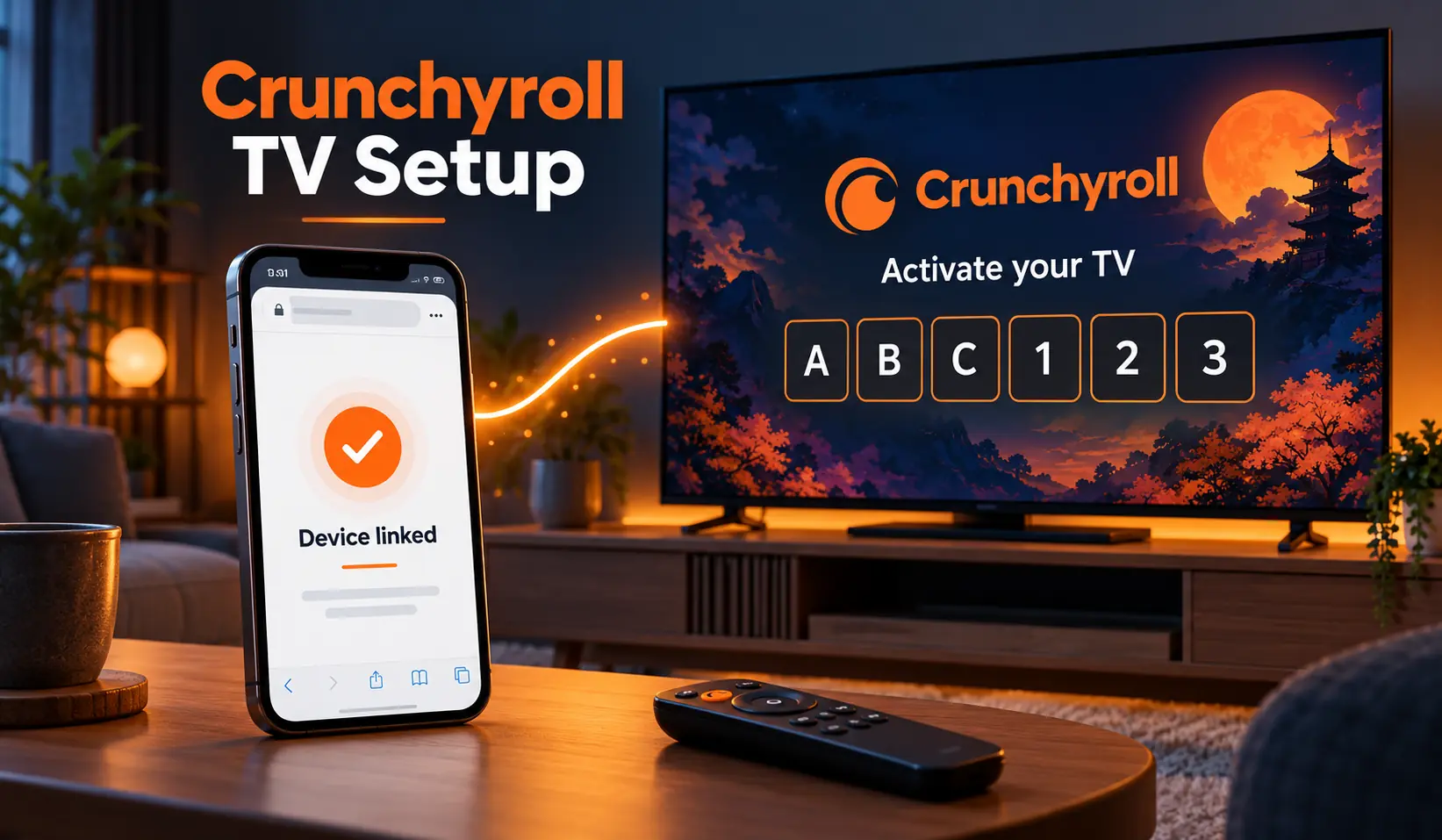
Watching anime on a television starts with getting the Crunchyroll app connected to the right account. An activation code lets you complete that connection using your phone or computer, without typing a long password with a TV remote.
If you searched for www.crunchyroll/activate, correct the address before continuing. That wording is missing “.com.” The official browser address is www.crunchyroll.com/activate, and the code comes from the Crunchyroll app on your television or streaming device.
This guide explains how to install the app, find your TV activation code, finish signing in, and handle common problems. It also explains why a successful login may still leave you facing a subscription prompt or a video that will not play.
What Crunchyroll TV Activation Actually Does
Device activation connects the Crunchyroll app on your TV to your Crunchyroll account. Instead of entering your account credentials on the television, you sign in through another device and submit the code displayed on the TV.
The code identifies the TV login session you are approving. Your Crunchyroll password and the activation code serve different purposes: the password verifies your account, while the code connects that account to the waiting television app.
Activation does not purchase a membership or unlock every title automatically. Your viewing access still depends on your subscription, the content available in your region, and any applicable account settings. Treat device sign-in and subscription management as separate steps.
Check Whether Your TV Supports the App
Start by identifying your television’s operating system and model. A brand name alone may not establish compatibility because manufacturers sell televisions with different software platforms, and older models may have different app support.
Crunchyroll supports several smart TV and streaming platforms. Samsung and LG have specific model and software requirements, while external devices such as Fire TV, Roku, and Apple TV provide other ways to run the app on compatible hardware.
The examples below help you decide where to begin. Check your exact device before assuming that an app available on another television will also appear on yours.
| TV or device | Where to look | Compatibility detail |
|---|---|---|
| Samsung Smart TV | Smart Hub, then Apps | Supported models start with 2017 TVs running Tizen 3.0 or later |
| LG Smart TV | LG Content Store | Supported models start with 2018 TVs running webOS 4.0 or later |
| Fire TV | Find or the app store | Confirm the device meets current Fire OS requirements |
| Roku | Streaming Store | Check support for your particular Roku model and software |
| Google TV or Android TV | Device app store | Search for the official TV app |
| Apple TV | App Store | Confirm the installed tvOS version is supported |
What to Have Ready Before Starting
Prepare your account before opening the TV login screen. If you already subscribe to Crunchyroll, identify the email address attached to that membership. Using another account can complete activation successfully while leaving your paid benefits unavailable.
Have a phone, tablet, or computer ready with an updated browser. Both the television and the device used for sign-in need working internet access. For manual browser activation, follow the displayed instructions rather than assuming you need to pair the devices through Bluetooth.
A short preparation check can prevent unnecessary restarts:
- Confirm that you can sign in to your Crunchyroll account.
- Check that the television has internet access.
- Install available app and system updates.
- Keep your phone or computer nearby.
- Use the account associated with your existing membership.
Install and Open Crunchyroll on Your Television
Open your TV’s app store and search for Crunchyroll. On Samsung, start in Smart Hub; on LG, use the LG Content Store. On Fire TV, use Find or voice search to locate the app.
Choose the official Crunchyroll app and install it. If it is already installed, check for an update before opening it. Updated software gives you the best chance of seeing the current login options.
When using an external streaming device, install the app on that device and select its HDMI input on the TV. Installing Crunchyroll on a phone does not install it on the television or streaming stick.
Open the app and choose the option for an existing account. If you already pay for Premium, look for Log In rather than starting a new subscription. The wording and screen layout can vary by platform.
Find the Activation Code on Your TV
On the sign-in screen, select Log in with Code, Log in with an Activation Code, or the equivalent option shown. Crunchyroll’s web activation instructions describe a six-character code displayed by the device.
Keep that screen open while completing the next steps. Copy the characters carefully, paying attention to letters and numbers that look similar. Use the code currently visible on your own television.
If the app offers only email login or a QR code, follow those available options. Do not search for a shared activation code online. A code from another screen will not identify the TV session you are trying to approve.
Complete the Browser Activation
On your phone or computer, open a browser and enter www.crunchyroll.com/activate in the address bar. Use the complete address, including “.com.” Searching the incomplete keyword www.crunchyroll/activate can produce results instead of taking you directly to the activation page.
Sign in if prompted. Before submitting anything, confirm that the browser is using the intended Crunchyroll account. A saved login on a shared phone or computer may belong to someone else.
Enter the code displayed on the TV and submit it. Return your attention to the television and allow the app to finish signing in. Avoid generating another code while the current submission is still being processed.
Once your account appears, choose the appropriate profile if prompted and open a show. Test an episode to confirm that playback works. A completed browser form is useful confirmation, but successful playback verifies more of the setup.
Use a QR Code or Email Login When Available
A QR code can shorten the sign-in process. Open your phone’s camera, scan the code displayed by the Crunchyroll TV app, and follow the resulting instructions. Check the destination before entering your credentials.
If scanning fails, try improving the room lighting or moving the phone until the entire code is visible. You can also return to the television’s login menu and select manual code entry if that option is available.
Email-and-password login is another option on supported apps. Choose whichever method your TV provides and you find easiest. These methods connect an account; choosing a different login method does not change your subscription.
| Login method | Main advantage | What to check |
|---|---|---|
| Browser activation code | Avoids entering a password with the remote | Submit the current TV code |
| QR code | Reduces manual typing | Confirm the destination and account |
| Email and password | Can be completed directly on supported TV apps | Check spelling and password capitalization |
Fix an Invalid Code or a Stuck Login Screen
If a code is rejected, compare your entry with the television before trying again. Remove accidental spaces and check similar-looking characters. Do not repeatedly submit an unchanged entry without checking the error message.
If the screen says the code expired, or the app has generated a replacement, use the new code. Return to the login menu and reopen code login when necessary. There is no reason to rely on an old photograph of a previous code.
If the browser confirms activation but the TV remains stuck, verify that you approved the code from that television. Then close and reopen the TV app. If it still requests login, begin a fresh attempt and keep that session open.
For a browser page that fails to load or submit, try another updated browser. If you use extensions, temporarily test without them. If account login itself fails, resolve that problem before requesting more TV codes.
Check Your Subscription if Premium Access Is Missing
A television can be signed in correctly while the account lacks the membership you expected. Check the account email and membership details before purchasing anything else. A second subscription will not repair an account mismatch.
Be careful about the difference between the standalone Crunchyroll app and a subscription channel inside another service. For example, Crunchyroll’s offering within The Roku Channel has separate subscription rules; an existing Crunchyroll membership cannot simply be linked to that channel.
If your payment was processed through another provider, identify exactly what you bought and where it should work. Keep the receipt available when contacting support, but never send your password or full payment card details. Confirm the account and billing route before making changes.
Troubleshoot Video Playback After Activation
If you can browse your account but episodes buffer or freeze, investigate playback separately from activation. Try another episode first. A problem affecting one video gives you different information from a problem affecting every title.
Restart the TV or streaming device, check its connection, and install available system and app updates. Crunchyroll’s basic troubleshooting also includes unplugging the device for 30 seconds before reconnecting it. Reinstall the app if simpler steps do not help.
Compare playback on another device using the same account. If the problem persists, report the TV model, app version, affected episode, exact error, and troubleshooting already attempted. That information is more useful than repeatedly activating a TV that already recognizes your account.
Final Thoughts
The most important correction is the address: www.crunchyroll/activate is incomplete. Use the official address with “.com,” obtain the code from your own TV app, and sign in to the account you intend to use.
Follow your television’s available login options, whether that means entering a code, scanning a QR code, or using email and password. Keep the app updated and confirm playback after signing in.
If something goes wrong, identify the stage that failed. App availability, account login, code acceptance, membership access, and video playback each require different checks. Solving the specific problem is usually more effective than restarting the entire setup.
FAQs
What is the correct Crunchyroll activation address?
The official address is www.crunchyroll.com/activate. The search phrase “www.crunchyroll/activate” leaves out “.com,” so it is incomplete. Enter the full address in your browser, then use the code displayed by your TV app. Check the account you are signed into before approving the device.
Where do I find my Crunchyroll activation code?
Open the Crunchyroll app on your television or streaming device, choose Log In, and select the code-based login option. The device displays the code for that session. If you see a QR code or email login instead, follow the options your app provides.
Does activating Crunchyroll on a TV cost extra?
Entering a device activation code signs the TV app into your account; it is not a separate Premium purchase. Watching subscription content requires the appropriate membership. If you encounter checkout, check whether you selected a subscription offer and whether you already have an active membership under another email.
Why does my Crunchyroll activation code keep failing?
A typing error, an expired code, or a code from a previous login attempt may explain the failure. Read the displayed message, compare the characters, and generate a fresh code when needed. If the website itself will not respond, test another updated browser before repeating activation.
Can I use my existing Crunchyroll account on another TV?
Yes, on a supported device, sign in using your existing account rather than creating another one. Your membership’s simultaneous streaming limits still apply, so adding another TV does not necessarily allow another concurrent stream. Confirm that you are opening the standalone Crunchyroll app rather than a separately billed channel.
What should I do if activation works but a show will not play?
Check your membership, then try another episode and another device. Restart and update the TV app if the issue appears limited to that television. If only one episode fails, record its title and error message for support. Reentering an activation code usually offers little benefit when account sign-in already works.



[…] and contact details that connect to the same organization. If the information is incomplete or inconsistent, treat ownership as unverified rather than assuming either legitimacy or […]
[…] A gateway needs to interpret messages consistently before forwarding them. Use a documented payload layout and check incoming lengths, field types, and device identities. Reject malformed messages instead of allowing unexpected bytes to become plausible-looking measurements. […]
[…] same FAQ says that old MangaSee123 and MangaLife accounts cannot be migrated. Readers who used an account on an earlier service should not expect […]
Comments are closed.