

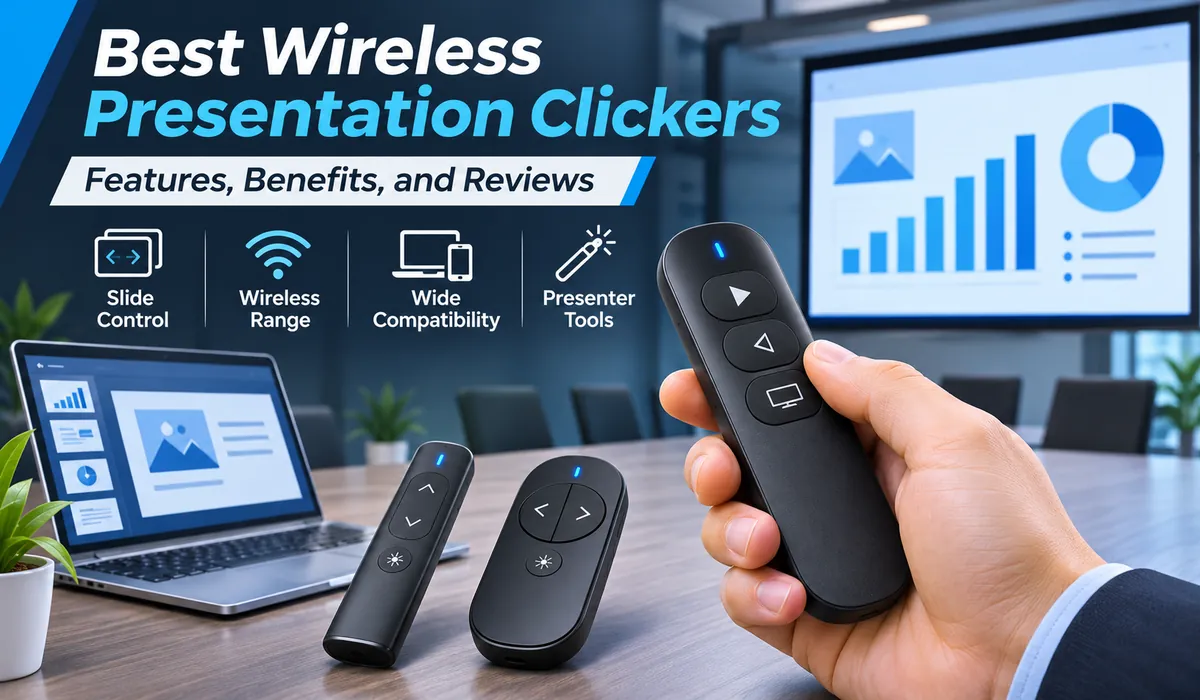
A good presentation depends on more than clear slides. Speakers also need to connect with the audience, manage their time, and move naturally around the room. Reaching for a laptop every few minutes can interrupt that flow. A wireless presentation clicker offers a simple way to keep control without standing beside a desk.
The Best Wireless Presentation Clickers make it easy to change slides, point out details, and stay focused on speaking. Some offer only the basic buttons, while others add digital highlighting, timers, or custom controls.
This guide compares popular models and explains the features, compatibility, and setup details that matter most.
What Is a Wireless Presentation Clicker?
A wireless presentation clicker is a handheld remote used to control slides from a short distance. Most models have forward and back buttons, allowing a speaker to advance through a presentation without touching a computer.
Many remotes connect through a small USB receiver that plugs into a laptop. Others use Bluetooth, while some support both methods. Basic buttons often work like keyboard commands, although compatibility varies.
A presentation remote is useful in classrooms, conference rooms, lecture halls, and training spaces. It can also help during online meetings when a speaker wants to advance slides while standing away from the keyboard.
Main Benefits of Using a Presentation Remote
The biggest benefit is freedom to move. Instead of looking down at a laptop, a speaker can face the room, make eye contact, and change slides at the right moment. This can make a talk feel more natural and less tied to the screen.
A clicker can also improve pacing. Clear buttons help a presenter move back to an earlier slide during questions or pause on a chart while explaining it. Some advanced models provide silent timing alerts to help manage a fixed speaking slot.
Teachers can move between desks, while business speakers can avoid pauses during demonstrations. The device does not replace preparation, but it removes one common distraction.
Key Features to Compare Before Buying
Wireless range matters, especially in larger rooms. A remote rated for 15 meters may be enough for a classroom, while a device with a longer rated range may suit a lecture hall. Walls, wireless traffic, and computer placement can reduce real-world performance.
Button design is equally important. Look for controls that are easy to identify by touch, with enough separation to prevent accidental presses. A comfortable grip and receiver storage also help during travel.
Think about the functions you will actually use:
- Slide navigation: Moving forward and backward without looking down.
- Pointer or highlight tool: Drawing attention to a chart or image.
- Battery indicators or timing alerts: Avoiding surprises mid-presentation.
Finally, consider power and setup. Replaceable batteries are convenient when replacements are nearby, while rechargeable models reduce routine battery changes. Check whether special features require an app, since basic slide control may work without installing anything.
Logitech R500s Review: Best for Everyday Presentations
The Logitech R500s is a practical choice for speakers who want simple controls without giving up connection options. It uses a red laser pointer and offers both Bluetooth Low Energy and a USB receiver, which makes it flexible across different laptop setups.
Its rated wireless range is up to 20 meters, or about 65 feet. The three-button layout keeps navigation straightforward, and the shape is designed to sit naturally in the hand. Logitech specifies up to 12 months of use from one AAA battery under its stated conditions.
The main advantage is balance: useful range, two connection methods, and familiar controls. Its physical laser can be hard to see on some flat-panel displays. For regular classroom and office talks, it remains a strong all-around option.
Logitech Spotlight 2 Review: Best Premium Features
The Logitech Spotlight 2 is designed for presenters who want more than basic slide changes. Introduced in 2026, it adds digital highlighting and customizable controls. Instead of relying only on a beam of light, it can emphasize content directly on the displayed image.
It supports Bluetooth Low Energy and a Logi Bolt USB-C receiver. A rechargeable battery, haptic feedback, and customizable actions add convenience. Some functions depend on compatible software.
This is a compelling choice for polished business talks, shared-screen sessions, and presentations on modern displays. However, it costs more than basic clickers in many markets, and its advanced options may be unnecessary for someone who only needs next and previous buttons.
Kensington Presenter Expert Review: Best for Large Rooms
The Kensington Presenter Expert Wireless with Green Laser is built for people who need clear controls and room to move. Its four-button design handles slide navigation, screen blanking, and laser pointing without a complicated layout.
Kensington lists a wireless range of up to 150 feet, roughly 45 meters, for this model. The green laser is intended to stand out better than a standard red one in many settings. A small USB receiver fits inside the remote for storage between events.
That range suits larger training spaces and lecture rooms. Its main trade-off is that it relies on a USB receiver rather than offering the same Bluetooth flexibility as some Logitech models. Laser visibility also depends on the screen and lighting.
Logitech R800 Review: Best for Timed Speaking
The Logitech R800 targets presenters who need to finish within a set time. It includes a built-in display, a presentation timer, and silent vibration alerts. These features can be helpful for lectures, conference sessions, and scheduled talks.
A green laser pointer helps draw attention to physical projection surfaces, and the rated wireless range reaches up to 30 meters, or 100 feet. The remote also offers the usual slide navigation buttons, so it can handle ordinary presentations without constant attention to its timer.
Its strongest feature is time management rather than modern digital effects. Its display makes it less minimal than simpler models. It is worth considering when keeping to a schedule matters as much as moving through slides.
Targus AMP16US Review: Best for Basic Slide Control
The Targus AMP16US Wireless USB Presenter is a straightforward option for presenters who prefer a traditional remote. It uses a USB receiver and 2.4 GHz wireless technology, with a manufacturer-listed range of up to 50 feet, or about 15 meters.
It includes a laser pointer and controls intended for moving through slides. This approach suits students and occasional speakers who prefer fewer settings.
The drawback is limited flexibility compared with premium Bluetooth models. Users should confirm that their laptop has a suitable USB port and that their chosen presentation app responds correctly. For small meeting rooms, however, basic functions may be all that is needed.
USB Receiver vs. Bluetooth: Which Is Better?
A USB receiver is often the easiest option in a shared meeting room. Plug it into a compatible port, open the presentation, and test the buttons. Many receivers work without a separate pairing process, which can save time when using an unfamiliar laptop.
Bluetooth avoids occupying a USB port and can be useful on thin laptops with limited connections. However, pairing may take a few extra steps, and company-managed computers sometimes restrict Bluetooth connections. Not every presentation remote supports it.
Dual connectivity helps when switching computers. Remember that USB-A and USB-C receivers are not interchangeable without the right port or adapter. Check the exact connection type before purchasing.
Red Laser, Green Laser, or Digital Pointer?
Red laser pointers are common and usually sufficient for pointing at a projected slide in a dim room. They are simple to operate, but their dots may appear faint on some television screens and other bright flat-panel displays.
Green lasers often look more visible to the human eye under comparable conditions, which can help in a bigger room. Yet a brighter beam is not a guarantee of good visibility on every display. Never aim a laser at eyes, people, vehicles, or aircraft.
A digital pointer creates an on-screen effect rather than shining light onto a surface. It can be better for video calls, screen sharing, and large monitors because viewers can see the effect within the shared content when the software supports it. Check that feature carefully before buying.
Compatibility With PowerPoint, Google Slides, and Keynote
Most standard clickers are designed around familiar slide navigation commands. Microsoft PowerPoint is widely supported, but a remote may behave differently in editing view than it does in full-screen slide show mode. Test navigation before your audience arrives.
Google Slides can often respond to ordinary forward and back controls while its presentation window is active. Browser focus matters: if another window or field is selected, a button press might not change the slide. This is particularly important during video meetings.
Apple Keynote users should verify macOS support for the exact model. Highlighting and custom controls may need extra software. A product’s compatibility list is more reliable than assuming every feature works everywhere.
How to Choose the Right Clicker for Your Needs
Start with where you speak most often. A teacher using a small classroom may value large buttons and long battery life over advanced controls. Someone presenting in a large hall should look more closely at range and pointer visibility.
Next, think about what appears on the screen. A physical laser can suit a projector, while digital highlighting makes more sense for a bright monitor or a presentation shared online. For hybrid meetings, confirm whether the effect appears to remote attendees.
Finally, match the price to your actual use. A simple remote may be enough for monthly presentations, whereas a frequent trainer may benefit from a timer or customizable buttons. Avoid paying for features you will not use.
Setup Tips and Common Problems
Before a presentation, check the battery, connect the receiver or pair Bluetooth, and open the slideshow. Walk to the farthest point where you expect to stand, then test both navigation directions. If you use a pointer, check how it looks on the actual screen.
When buttons stop responding, first make sure the slideshow window is active. Try moving the USB receiver away from nearby devices, reconnecting it, or checking Bluetooth pairing. A weak battery and blocked or crowded wireless connections can also cause unreliable control.
If custom actions fail, check that the required application is installed and supported by your computer. Keep keyboard navigation as a backup. Store the receiver in its compartment and recharge or replace batteries before travel.
Final Thoughts
The best presentation remote is the one that fits your room, computer, and speaking style. For general use, the Logitech R500s offers a practical mix of simple controls and flexible connections. The Spotlight 2 stands out for digital effects, while Kensington’s Presenter Expert favors long-range use.
Speakers working against the clock may prefer the Logitech R800. Those who only need to change slides can consider a straightforward Targus model instead of paying for features they will rarely use.
Before deciding, compare connection types, app compatibility, battery design, and screen conditions. A reliable clicker should feel easy enough to forget about once the talk begins, leaving your attention where it belongs: on the people listening.
Frequently Asked Questions (FAQs)
Do wireless presentation clickers work with all laptops?
Not all of them. Many work with Windows and macOS, but connections and advanced features differ by model. Check the operating system, USB port, and any required app before buying.
Can I use a presentation clicker with Google Slides?
Usually, yes. Many remotes can move between slides when Google Slides is in presentation mode and the correct browser window is active. Extra buttons may not work without special setup.
Is Bluetooth better than a USB presentation remote?
Neither is always better. Bluetooth keeps ports free, while a USB receiver can offer simple plug-and-play setup. A model supporting both is especially useful for people who switch laptops.
What wireless range should I look for?
For a small room, around 10 to 15 meters may be enough. Larger halls can benefit from a longer rated range. Test the remote at the actual venue because interference can affect performance.
Are green laser pointers better than red ones?
Green laser dots can be easier to notice in many settings, but visibility depends on the screen and lighting. For flat-panel displays or online talks, a digital highlight may work better.
Do I need a rechargeable presentation clicker?
Not necessarily. Rechargeable models are convenient for frequent use, while remotes with replaceable batteries are easy to maintain during travel. Choose based on how often you present and your charging habits.